MIDIPen is an iPad app for playing synthesizers by drawing. The screen is a grid of blocks. Each block is a small XY-plus-pressure pad. Put a pencil or a finger on it and the pen's X position, Y position and pressure are sent as MIDI control changes. Lift the pen and the block keeps sending its last value. Record a stroke and the block plays it back in time with a clock.
MIDIPen makes no sound of its own. It drives the instruments you already have: synth apps on the same iPad, a DAW, or hardware through a USB or Bluetooth MIDI interface.
1 · Connecting MIDI
MIDIPen publishes two virtual MIDI ports the moment it launches:
- MIDIPen — a source. Other apps and your DAW see it as a MIDI input. Everything MIDIPen sends goes here.
- MIDIPen In — a destination. Send MIDI clock, transport, and the controller messages MIDI learn listens for to this port.
MIDIPen also sends to every MIDI destination connected to the iPad: USB interfaces, Bluetooth MIDI devices paired in another app, Network MIDI sessions, and the virtual inputs of other apps. There is nothing to route; if a synth can receive MIDI, MIDIPen is already talking to it.
Set the synth to listen on the channel your block sends on. The first block defaults to channel 1; each new block takes the lowest channel no block is using yet.
2 · The screen
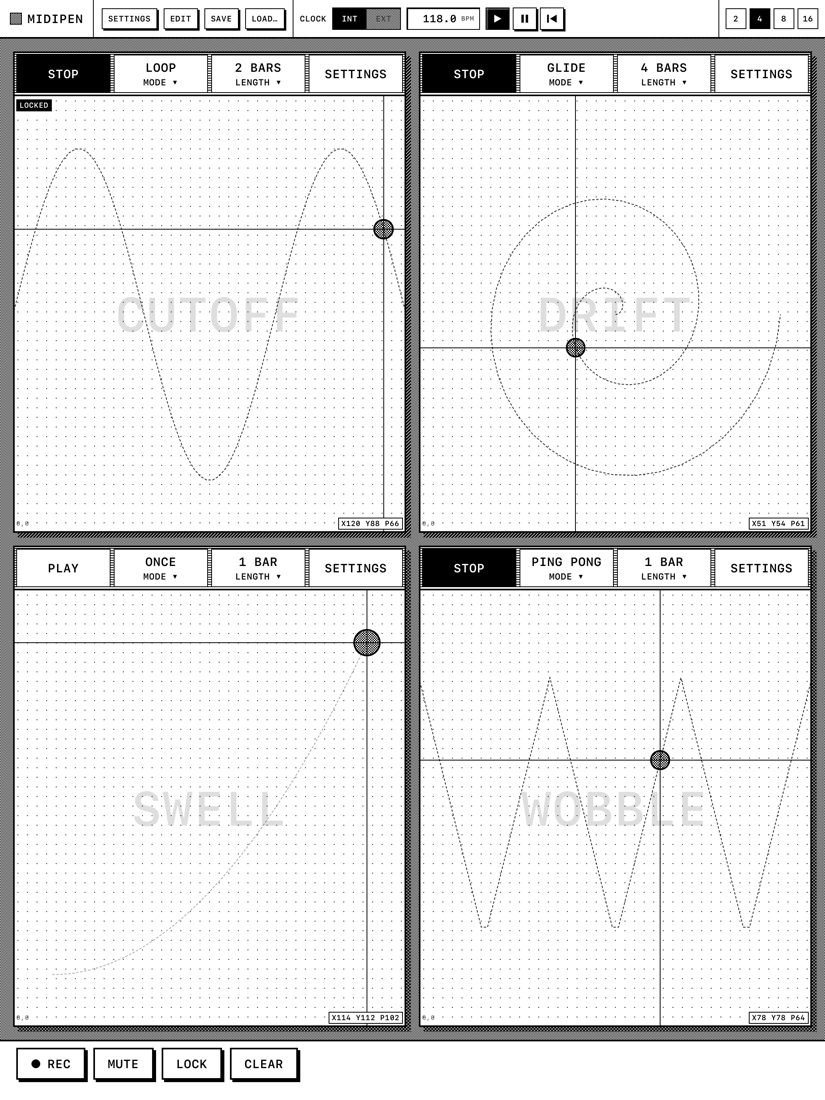
Status bar. The MIDIPen identity cell on the left (tap it for a surprise), then SETTINGS, EDIT, SAVE and LOAD…, the CLOCK section (INT/EXT slider, BPM readout, transport buttons), and the layout buttons 2 / 4 / 8 / 16 on the right.
The canvas. A grid of blocks. An empty slot shows a dashed ADD BLOCK card; tap it to add a block. EDIT turns every block into a REMOVE target; tap DONE when finished.
Bottom bar. REC, MUTE, LOCK and CLEAR. These are hold-and-tap tools (see Tools). While one is held, the bar shows a hint or the bar counter.
3 · Blocks
Each block has a title bar and a pad. The title bar holds four controls:
| Control | What it does |
|---|---|
| PLAY / STOP | Plays the recorded gesture, or stops it. Dimmed until the block has a gesture. |
| MODE ▾ | ONCE, LOOP, PING PONG or GLIDE. See Playback. |
| LENGTH ▾ | 1 to 8 bars: how long a recording is stretched to, and how long one pass of playback takes. |
| SETTINGS | Opens the block's settings dialog. |
The pad is the instrument. It shows a dotted grid for orientation, the block's name ghosted behind everything, the recorded gesture as a dashed line (brighter while playing), the cursor (a crosshair at the current X and Y and a circle whose size is the current pressure), and a readout in the corner such as X64 Y100 P51: the values being sent, 0–127. A LOCKED badge appears when the block is locked; a hatch and a MUTED plate when it is muted.
X runs left to right, Y runs bottom to top (up is more), and pressure is pen force. A finger sends a constant medium pressure.
While no gesture is playing, drawing on the pad sends live. Lift the pen and the block holds its last value; it does not snap back to zero.
4 · Block settings and mappings
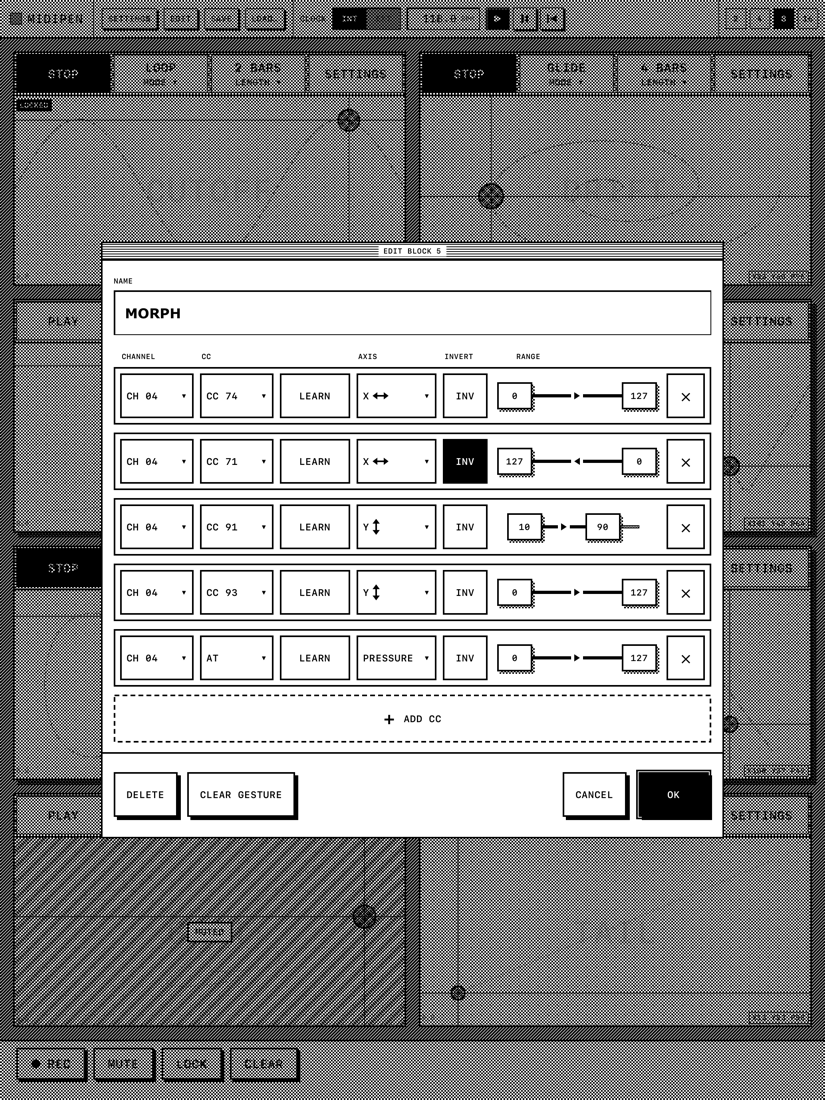
Tap SETTINGS on a block. The dialog has a NAME field and one row per mapping. A block can have up to eight mappings, so one block can act as a macro: one stroke moves several controllers at once.
| Column | What it does |
|---|---|
| CHANNEL | MIDI channel 1–16 for this row only. Rows in the same block can be on different channels. |
| CC | Controller number 0–127, or AT for channel aftertouch. The picker has a COMMON tab with named controllers (CC 1 Mod Wheel, CC 74 Cutoff…) and an ALL tab. |
| LEARN | Listen for an incoming controller and fill in channel and CC. See MIDI learn. |
| AXIS | Which pad value drives the row: X, Y, PRESSURE, or OFF. An OFF row keeps its settings but sends nothing. |
| INV | Reverse the row so the top (or right) of the pad sends the low value. |
| RANGE | Two handles set the values sent at the two ends of the axis, for example 32–96 for a filter that should never fully close. |
| ✕ | Remove the row. |
ADD CC appends a row. The buttons at the bottom: DELETE removes the block, CLEAR GESTURE erases its recording, CANCEL discards the edits, OK applies them.
A new block starts with X → CC 1 (mod wheel), Y → CC 2 (breath), and a pressure → aftertouch row switched OFF. Switch that row on if your pencil and your synth both do pressure.
5 · MIDI learn
Tap LEARN on a mapping row. The button reads LISTEN… Turn a knob on your controller or move a control in your DAW that is routed to MIDIPen In. After two consecutive messages from the same channel and controller the row takes that channel and CC number and LEARN switches off. A single stray message is ignored, so an accidental knob touch cannot hijack the row. Tap LEARN again or close the dialog to cancel.
The learned message's channel is applied too, matching the DAW and hardware convention.
6 · Recording a gesture
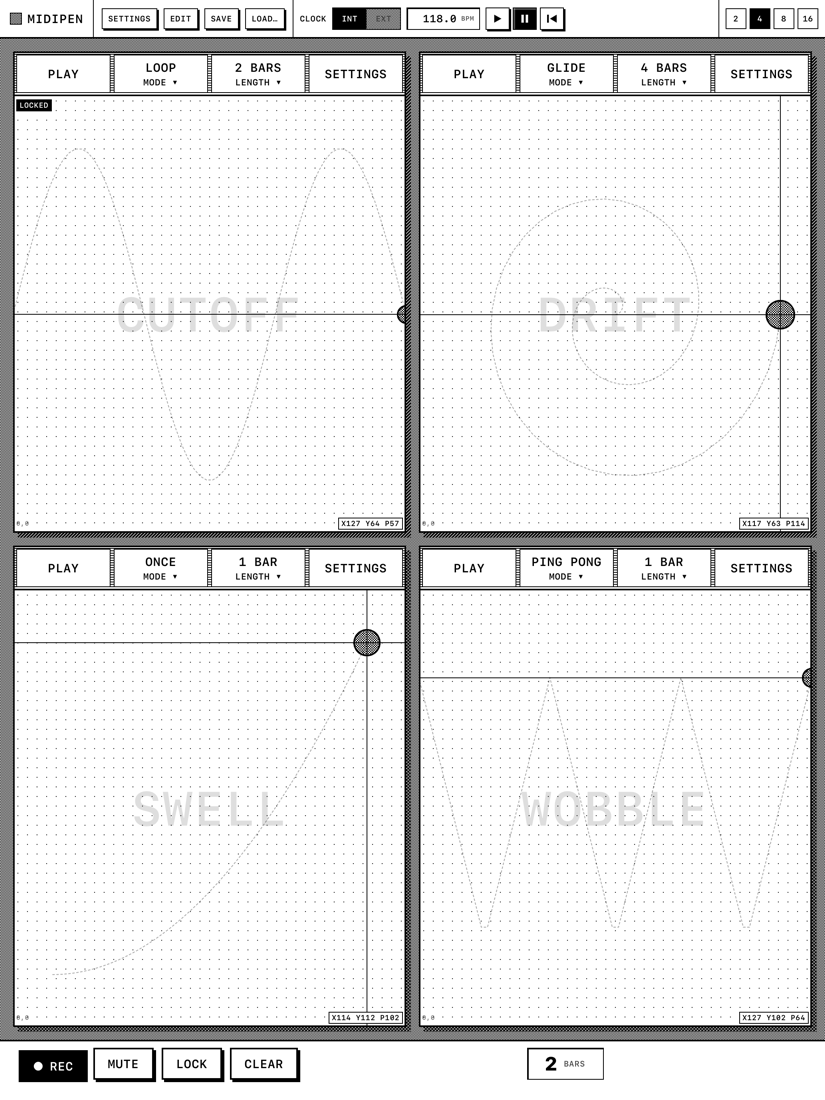
The bottom bar's REC is a hold-to-record button.
- Hold REC with one finger.
- Draw on any block or several blocks with the pen (or another finger). Lifts and re-touches inside the hold are kept: playback holds the values through the gap and jumps at the next stroke.
- Let go of REC.
Every block you touched during the hold gets that drawing as its gesture. The recording is normalized over the length of the hold and each block's LENGTH is set to the nearest bar count, so playback is in time regardless of how fast you drew. The bar counter in the middle of the bar shows how long you have been holding at the current tempo.
Locked blocks ignore the hold. Recording a block that already has a gesture replaces it.
7 · Playing a gesture back
Tap PLAY on a block with a gesture. Playback follows the clock: one pass takes LENGTH bars. The title bar shows STOP while playing. MODE chooses what happens at the end of a pass:
| Mode | Behaviour |
|---|---|
| ONCE | Plays through, stops, and holds the final values, as if you left the pen where the stroke ended. |
| LOOP | Repeats from the start. The seam is a jump. |
| PING PONG | Plays forward, then backward, and so on. A round trip is two lengths. |
| GLIDE | Loops, but crossfades across the seam (the last tenth of a pass into the first tenth of the next), so the end of the stroke slides into its beginning with no jump. Good for filter sweeps and pans. |
You can draw on a block while it plays: your pen values are sent as you draw and the playback keeps running underneath. Stop the block if you want to take over completely.
8 · The clock
The CLOCK section of the status bar is explicit: it never guesses.
- INT / EXT slider picks the clock source.
- BPM readout flashes on every beat. With INT, tap it to open the TEMPO panel (40–240 BPM, ±10 / ±1 / ±0.1 buttons). With EXT it shows the tempo MIDIPen measures from incoming clock.
- ▶ ❚❚ |◀ — start, pause, and reset to bar 1. These only work with the internal clock.
External clock. Set EXT and send MIDI clock and transport to the MIDIPen In port from your DAW or hardware. START rewinds every playing block to its beginning and cancels any recording in progress, STOP holds everything where it is, CONTINUE resumes. A clock stream without transport messages still runs. Song Position Pointer is not followed.
The internal clock starts stopped: press ▶ before you expect loops to move.
9 · Bottom-bar tools: REC, MUTE, LOCK, CLEAR
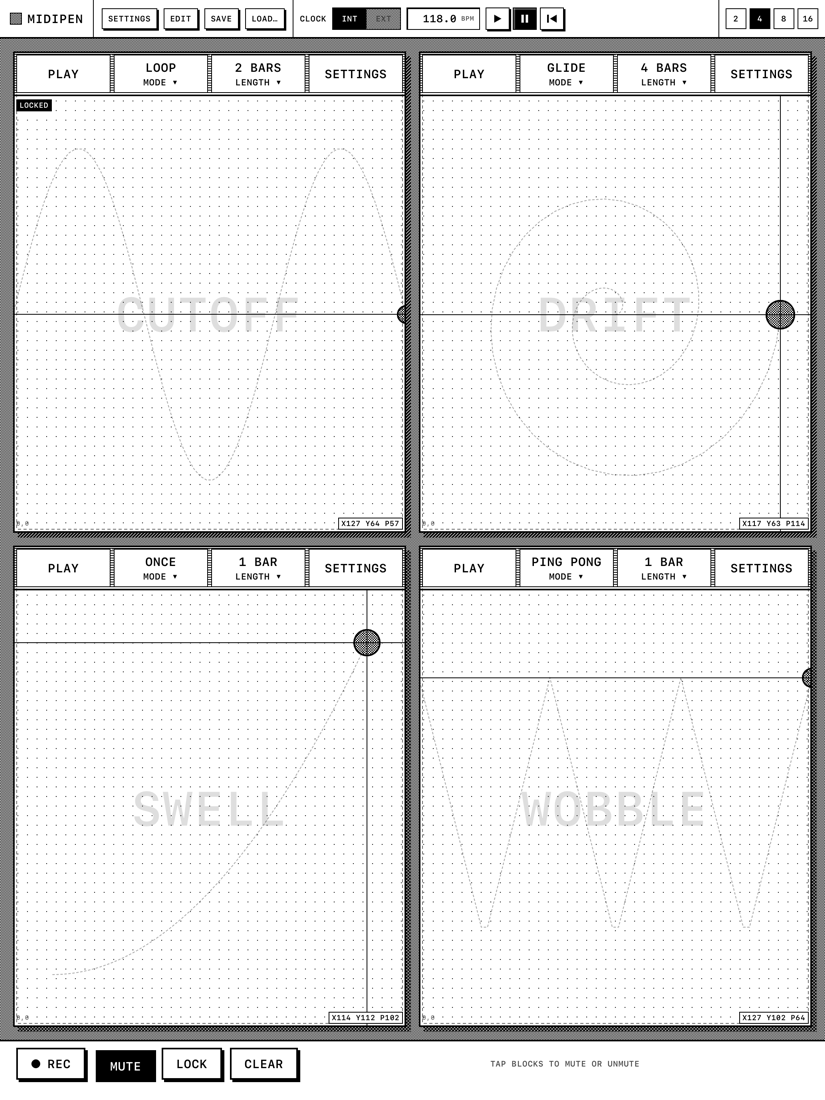
REC, MUTE, LOCK and CLEAR are hold-and-tap: hold the button, and every block becomes a tap target with a dashed ring. Tap the blocks you want, let go. Nothing happens on a plain tap of the tool, so a brush against the bar during a set is harmless.
- REC — see Recording.
- MUTE — toggles mute. A muted block keeps playing silently and shows the hatch overlay; unmute and it is back where it would have been. Mute works on locked blocks; silencing a runaway modulation is an emergency action.
- LOCK — toggles lock. A locked block ignores the pen, REC and CLEAR, so a finished curve cannot be smeared by a palm.
- CLEAR — erases the block's gesture (not on locked blocks).
Pressing REC while another tool is held cancels that tool.
10 · Layouts: 2, 4, 8, 16
The 2 / 4 / 8 / 16 buttons choose how many blocks are on screen. This is a view setting: blocks beyond the visible count keep their state and playback position but send no MIDI while hidden. Switch back and they pick up where they would have been.
| Layout | Grid |
|---|---|
| 16 | 4 × 4 |
| 8 | 4 × 2 in landscape, 2 × 4 in portrait |
| 4 | 2 × 2 |
| 2 | Side by side in landscape, stacked in portrait |
In a narrow window (Split View beside a synth) the grid drops columns so no block gets too small, and the status bar wraps to two rows.
11 · Saving and loading setups
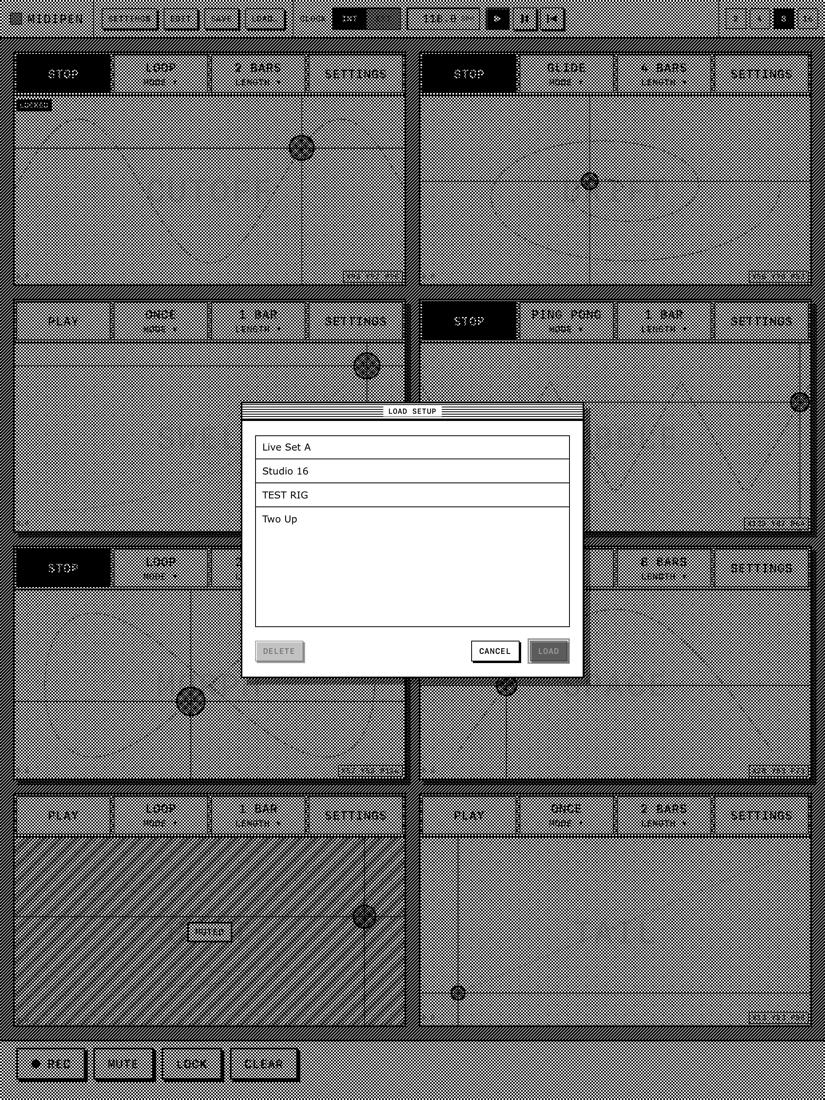
The canvas autosaves continuously; quit and relaunch and everything is where you left it, including gestures.
SAVE stores the whole canvas (blocks, mappings, gestures, layout, clock mode and tempo) under a name. LOAD… lists saved setups; pick one and tap LOAD, or DELETE to remove it. Loading replaces the current canvas.
12 · App settings
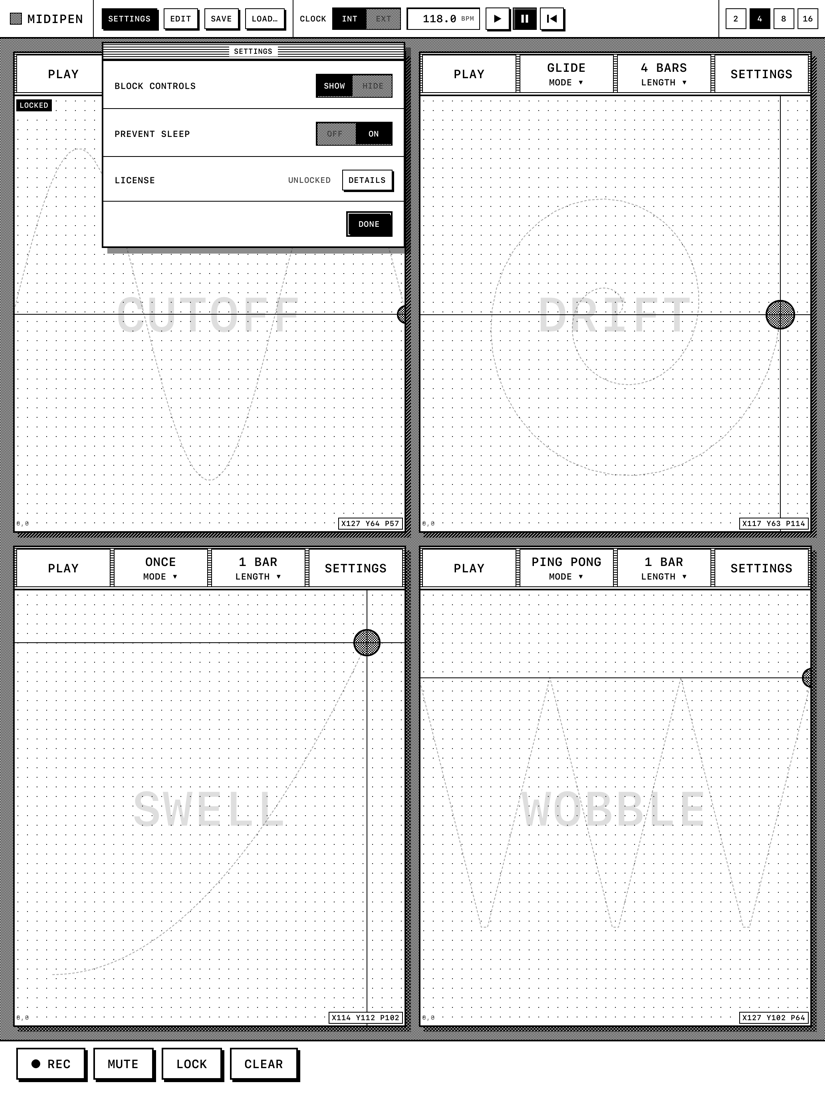
The SETTINGS button in the status bar opens a small window:
- BLOCK CONTROLS SHOW / HIDE — HIDE removes every block's title bar so the pads fill the whole frame. Use SHOW to get the controls back.
- PREVENT SLEEP OFF / ON — ON keeps the iPad awake while MIDIPen is in front and makes the first swipe from any screen edge go to the app instead of the system, so a stroke that runs off the pad doesn't open the Dock or Control Center. A second swipe still reaches the system.
- LICENSE — FREE or UNLOCKED, with UNLOCK… / DETAILS. See The unlock.
MIDIPen follows the system light or dark appearance.
13 · Apple Pencil
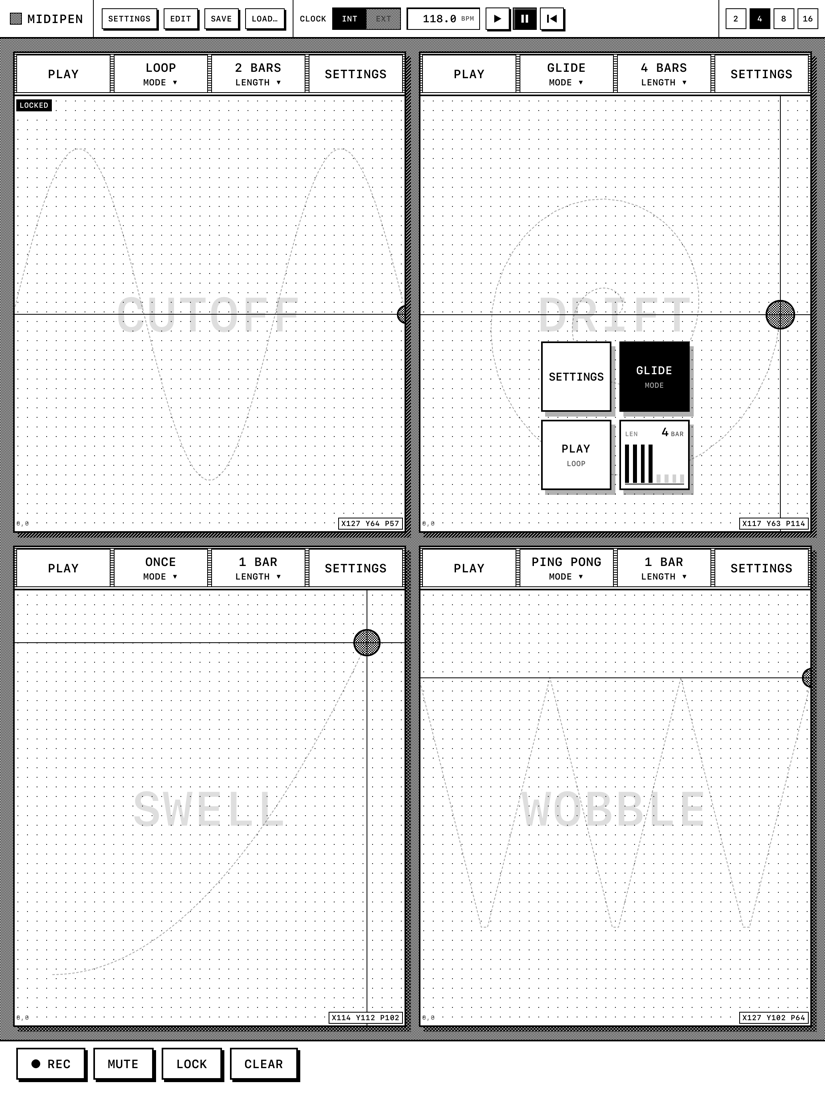
Any Apple Pencil supplies pressure. With an Apple Pencil Pro, squeeze over a block to open a menu under the pen: SETTINGS, MODE (tap to cycle), PLAY, and a LEN meter you drag across to set 1–8 bars. Squeeze again or tap elsewhere to close it. The squeeze only fires when iPadOS Settings › Apple Pencil › Squeeze is set to Show Contextual Palette.
14 · The unlock
MIDIPen is free with the 2-block layout. A single $9.99 in-app purchase, MIDIPen Unlock, opens the 4, 8 and 16 block layouts and raises the block limit to sixteen. One purchase, no subscription; nothing else in the app is paid.
Tap a dimmed layout button, or SETTINGS › LICENSE › UNLOCK…, to see the UPGRADE window. RESTORE brings the purchase back on a new iPad signed in to the same Apple Account.
15 · Troubleshooting
My synth doesn't respond. Check the synth is listening on the block's channel (the CHANNEL column in block settings; an unnamed block shows its channel in the title bar as CH 01). Check the synth's MIDI input is set to "MIDIPen" or to all inputs. Check the block isn't muted.
The loop doesn't move. The internal clock starts stopped: press ▶ in the status bar. With EXT, the DAW or sequencer has to be running and sending clock to "MIDIPen In".
LEARN never picks anything up. The controller has to reach the MIDIPen In port. In a DAW, add a MIDI track (or a send) whose output is "MIDIPen In" and move the control; on hardware, connect its MIDI out to the interface. LEARN needs two messages in a row from the same control.
Two rows fight. Two mappings on the same channel and CC number inside one block (or across blocks) both send, and the synth hears whichever arrived last. Give each row its own CC; a freshly added row starts at CC 0, so edit it before playing.
Pressure does nothing. The pressure → aftertouch row is OFF by default. Switch it on, and make sure the synth responds to channel aftertouch (or point the row at a CC instead). A finger sends constant pressure.
The Dock keeps appearing. Turn on PREVENT SLEEP in SETTINGS; the first edge swipe then goes to MIDIPen.
Still stuck? support@rocamr.com